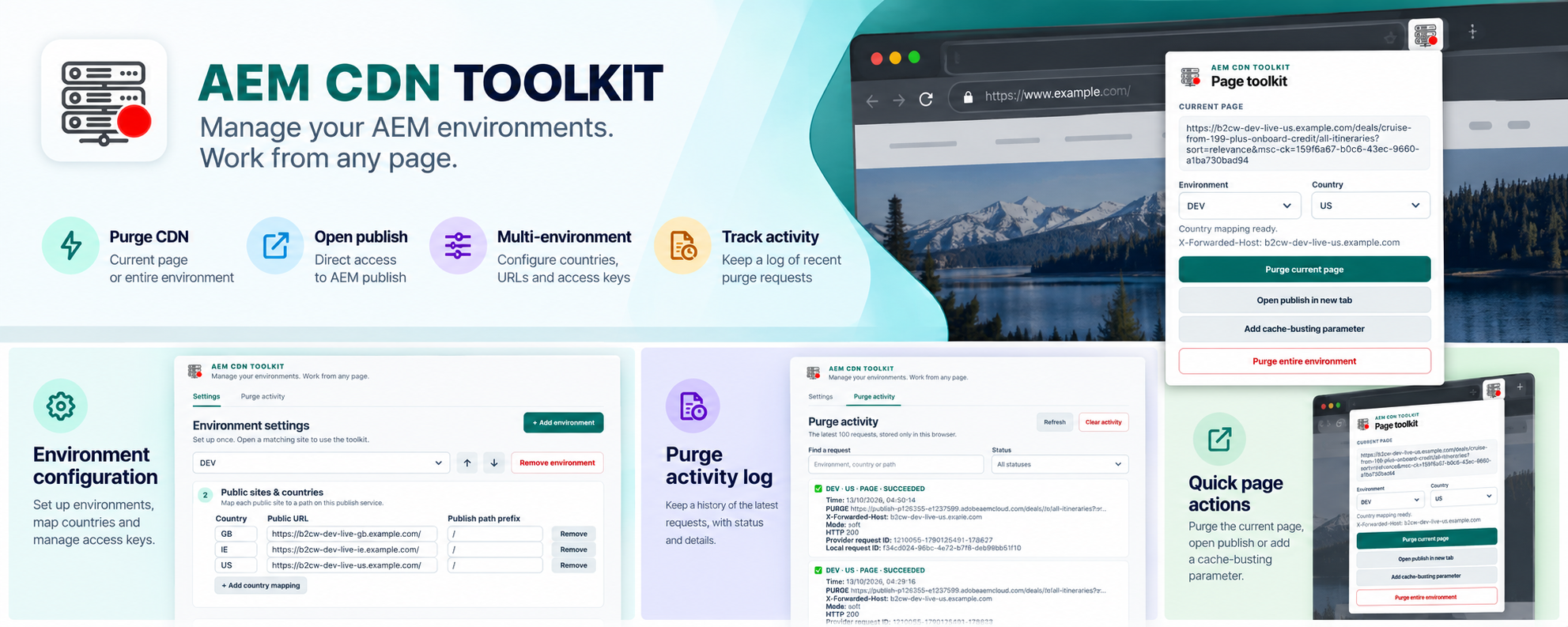
One place for your AEM workflow. Promotional artwork and previews use
example environments; the installed interface may differ.
Your environmentsNames, countries and controls you choose.
Your browserLocal settings. No developer account.
Your servicesRequests go directly to configured AEM hosts.
THREE PARTS. ONE WORKFLOW.
From context to action.
Keep the environment, the page and the outcome connected.
01 / PAGE ACTIONS
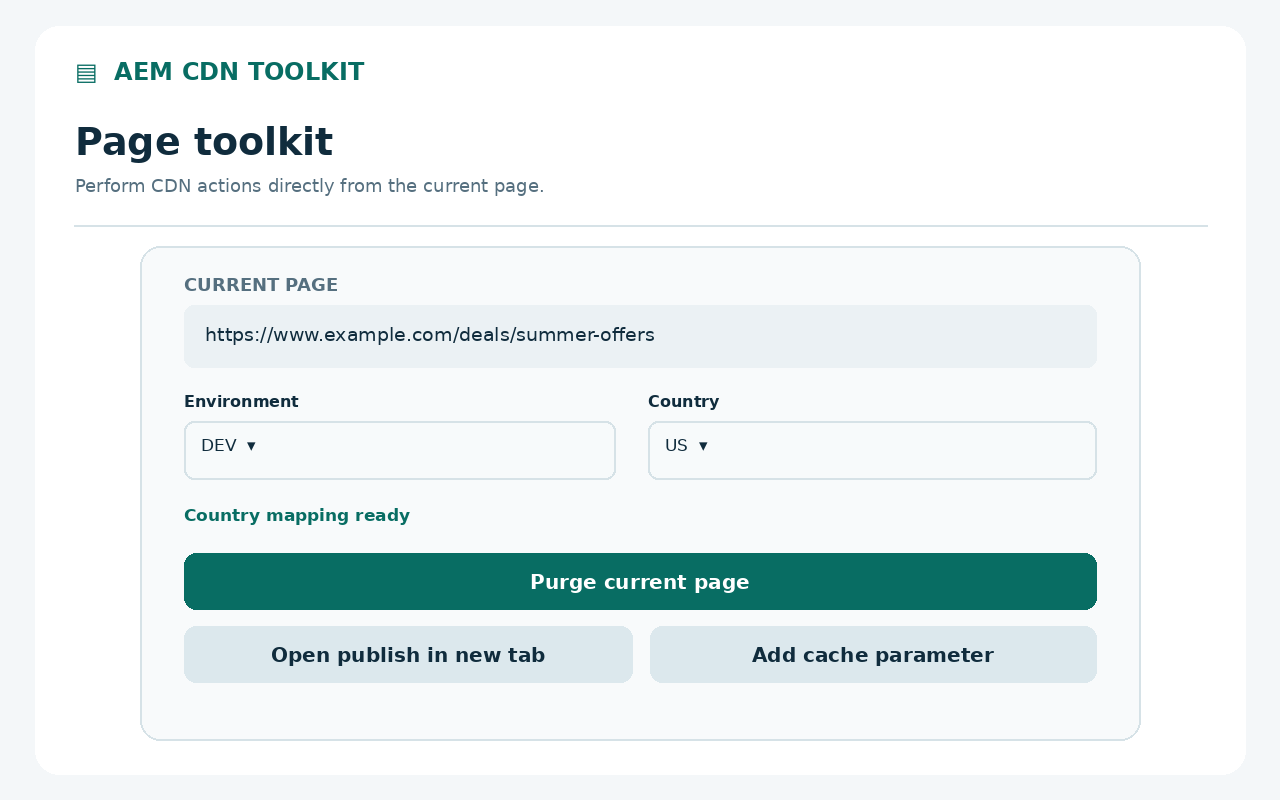
Work on the page you are already on.
Open authenticated publish in a new tab or window, send a soft or
hard page purge, or add a random cache parameter.
A green toolbar dot identifies configured domains. The popup
resolves the environment and country, with an explicit choice when
multiple mappings match.
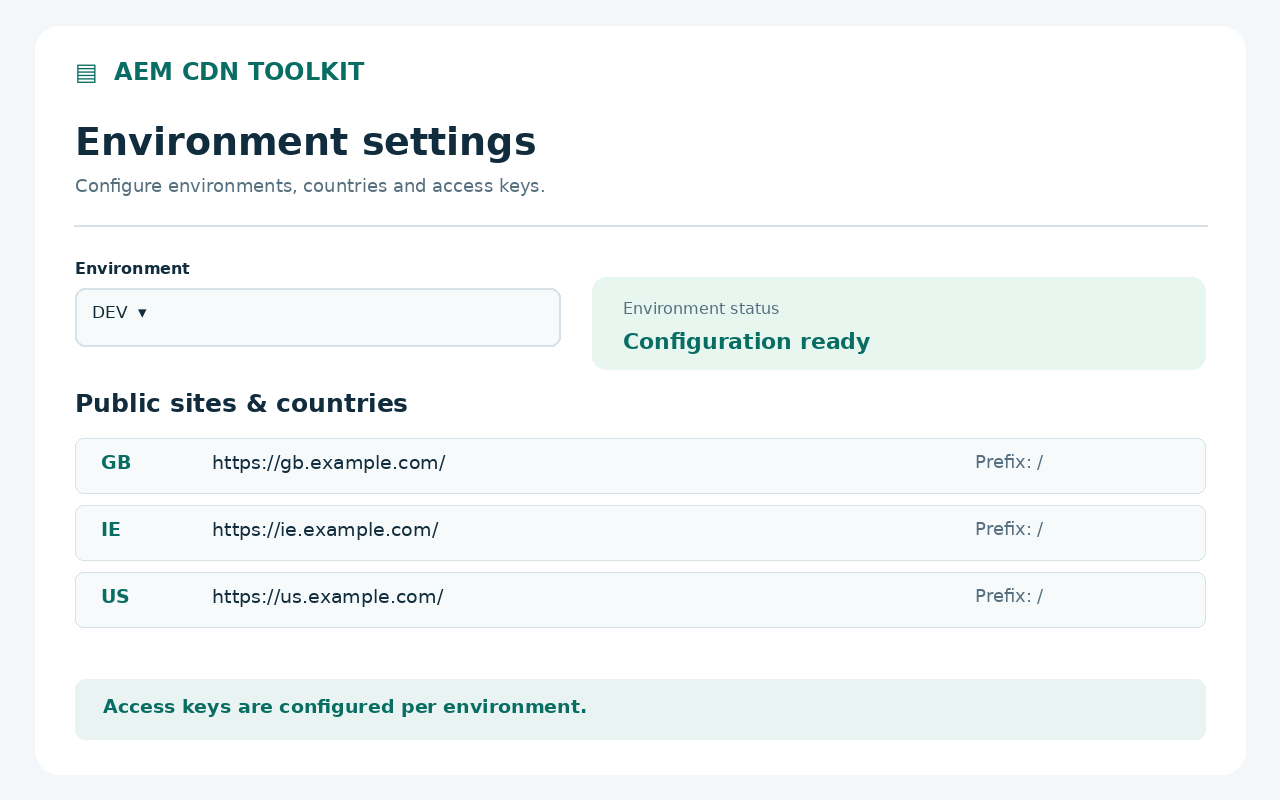
ENVIRONMENT SETTINGS / Illustrative preview · Select to enlarge
03 / PURGE ACTIVITY
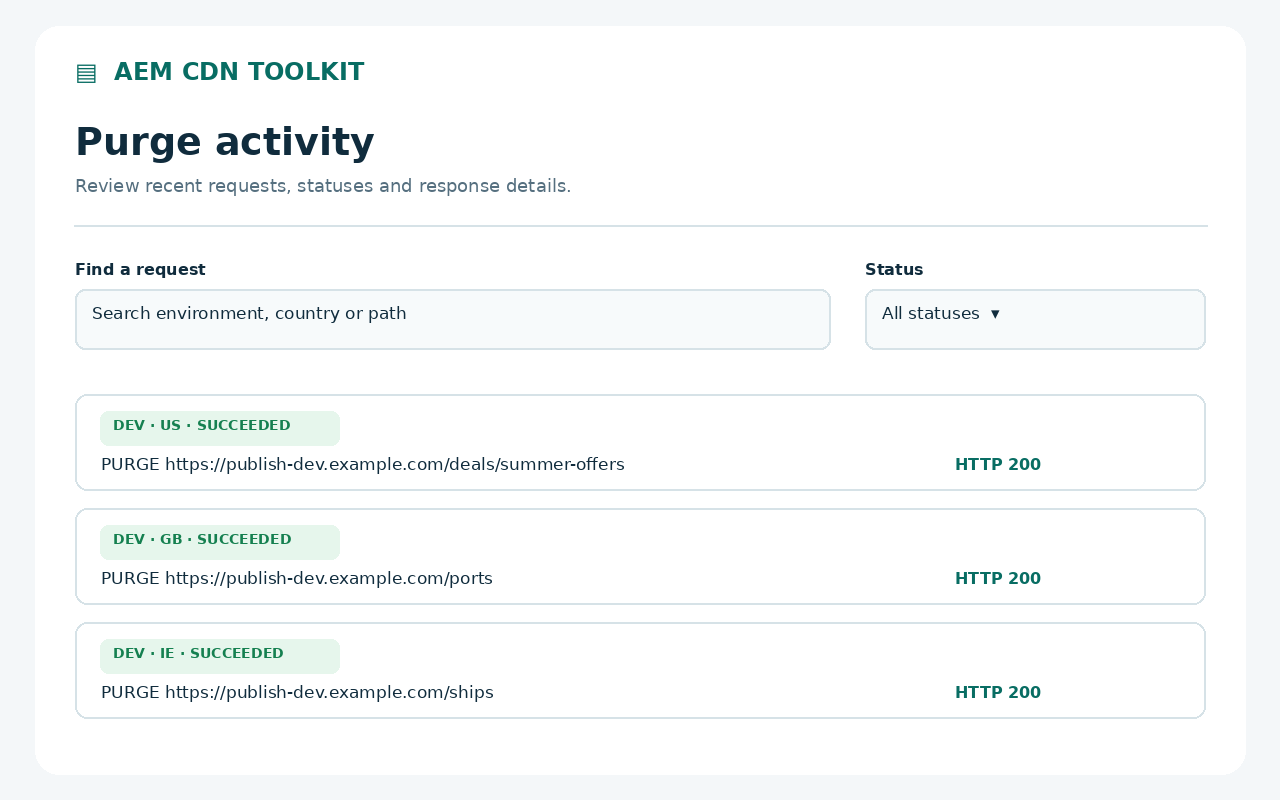
Send a request. Keep the outcome.
Review the latest 100 requests in your browser. Search by
environment, country or path, filter by status, and inspect
response details and request IDs.
Activity distinguishes succeeded, accepted, failed and unknown
outcomes. New records omit URL query strings and fragments.
PURGE ACTIVITY / Illustrative preview · Select to enlarge
A SMALL TOOL. A CLEAR BOUNDARY.
In your browser. Under your control.
No analytics, telemetry or developer backend. Configuration and
activity stay in your Chrome profile. Your keys are sent only to
your configured services when required for publish access or purge.
Host permissions are requested for configured HTTPS hosts. Publish
headers are scoped to the created tab and exact publish origin.
Saved keys are plaintext in extension storage, not an encrypted
vault.
You need Chrome 120+, an AEM as a Cloud Service publish environment
and suitable edge and purge keys. The toolkit does not provision
services or issue credentials.
Load the extension
Clone or download the
GitHub repository. Extract it, open chrome://extensions, enable
Developer mode, then choose
Load unpacked and select the folder containing
manifest.json.
Make it yours
Pin the extension. Open its popup, choose
Settings, then Add environment.
Enter a unique name, HTTPS publish origin, public country URLs and
any publish path prefixes.
Save your controls
Add your edge key and a purge key if needed. Choose tab or window
opening, purge mode and confirmations. Select
Save environment and grant access to the
configured hosts.
Open a matching page
Visit a configured public site and open the popup. Select the
environment and country if needed. Validate publish access and
page purge in a test environment before using production.
KNOW WHAT THE RESPONSE MEANS
A request is only part of the story.
Succeeded
The service returned a successful HTTP response and explicit
status: ok.
Accepted
The HTTP request succeeded without explicit completion
confirmation.
Unknown
A timeout, network error or interruption prevents confirmation.
Verify before retrying.
Full purge affects all cached resources and countries for the selected
AEM publish service. The toolkit does not invalidate Dispatcher cache
or a separate customer CDN. A random cache parameter changes the page
URL; its effect depends on your CDN configuration.
Use the toolkit in Incognito
Open chrome://extensions, select
Details for AEM CDN Toolkit, then enable
Allow in Incognito. Saved environments and keys are
shared with regular browsing. Publish opens in the same browsing mode
as the source page.
Incognito purge outcomes appear in the popup and are not saved to
activity history. Settings and saved activity open in a regular
window. Publish tab context stays in session memory until the tab
closes.
KEEP MOVING
A little help, when you need it.
How do I back up or clear my configuration?
Import, export and reset are at the bottom of Settings. Exports omit
keys by default; select “Include saved keys” only for a private
backup. Reset clears environments, keys and active publish headers
but retains activity. Activity has its own clear control.
Why do I still see the old settings after an update?
Reload the extension in Chrome's extension manager, then close and
reopen Settings and the popup. Reopen publish through the extension
after credential or mapping changes. The publish button shows
whether the saved setting opens a tab or a window.
Does the green toolbar dot mean access is working?
It identifies a configured domain, not valid credentials or working
CDN connectivity. Page actions also require a valid country mapping.
Check the selected environment and public path prefix if actions are
unavailable.